← Back to blog
How to Connect YouTube to Recapfy and Recap Videos From Your Subscriptions
November 19, 2026 · 2 min read
Pasting links works for a one-off video, but if you follow a lot of channels it’s quicker to connect YouTube. Recapfy then lists the channels you’re subscribed to with their latest videos, so you can pick one and get its recap without copying any links. It works on every plan, including Free.
Step 1: Connect your YouTube account
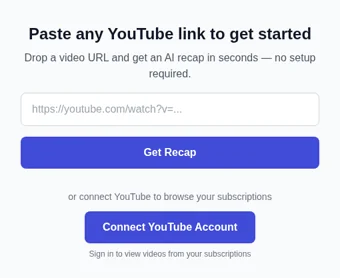
On the Channels tab, below the link box, click Connect YouTube Account.
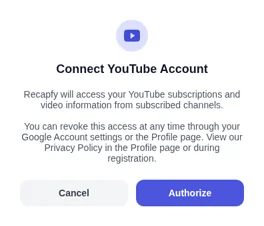
Recapfy explains what it will access: your YouTube subscriptions and video information from the channels you’re subscribed to. Click Authorize.
Google then asks you to choose the Google account, or the YouTube channel (brand account), whose subscriptions you want to use. Pick it and click Continue, and your channels load in Recapfy.
Tip: You’re not locked to one YouTube account. You can switch to a different Google account or YouTube channel at any time: disconnect on the Profile tab, then connect again and pick the other account.
Step 2: Find a channel
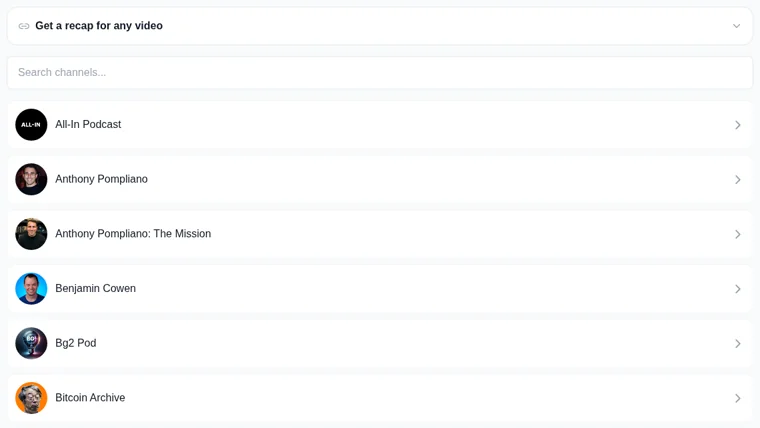
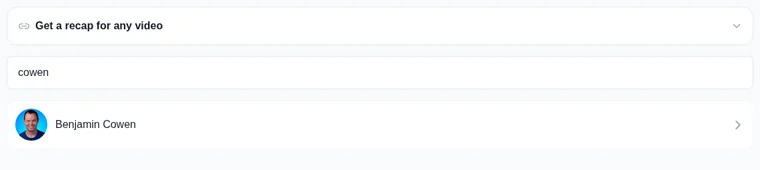
The Channels tab now lists the channels you’re subscribed to on YouTube. Scroll through them, or type a name in Search channels… to jump straight to one.
Step 3: Get a recap of a video
Open a channel to see its latest videos. Each video has two buttons: Recaps and Chat.
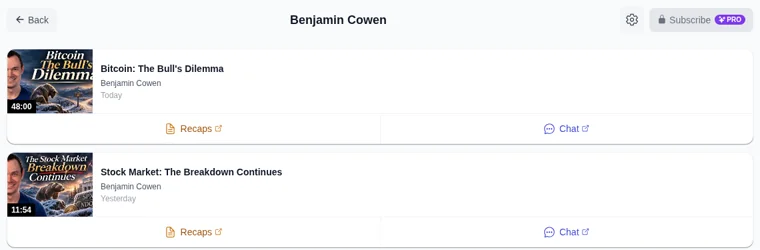
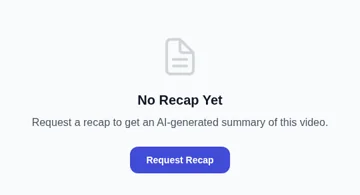
Click Recaps. If nobody has recapped that video yet, click Request Recap, pick a language if asked, and the recap appears here once it’s ready.
Chat lets you ask questions about the video instead (guide coming soon).
Want every new video from a channel recapped automatically and sent to your inbox? That’s the Subscribe button on the channel page, available on the Starter and Expert plans. See How to Get YouTube Video Summaries in Your Inbox.
Disconnecting
You can see the connection on the Profile tab, under YouTube Account. To remove it, click Disconnect YouTube. You can also revoke Recapfy’s access at any time from your Google Account settings.

Recapfy
AI-powered YouTube video summaries that save you hours of watching time.
© 2026 Recapfy. All rights reserved.