← Back to blog
How to Chat With a YouTube Video in Recapfy
November 20, 2026 · 2 min read
A recap gives you the gist of a YouTube video. When you have a specific question, open chat on that video and ask. You can follow up in the same conversation, or start a new one. Chat works on every plan, including Free.
Step 1: Open chat on a video
On the Recaps tab, find the video and click Chat.
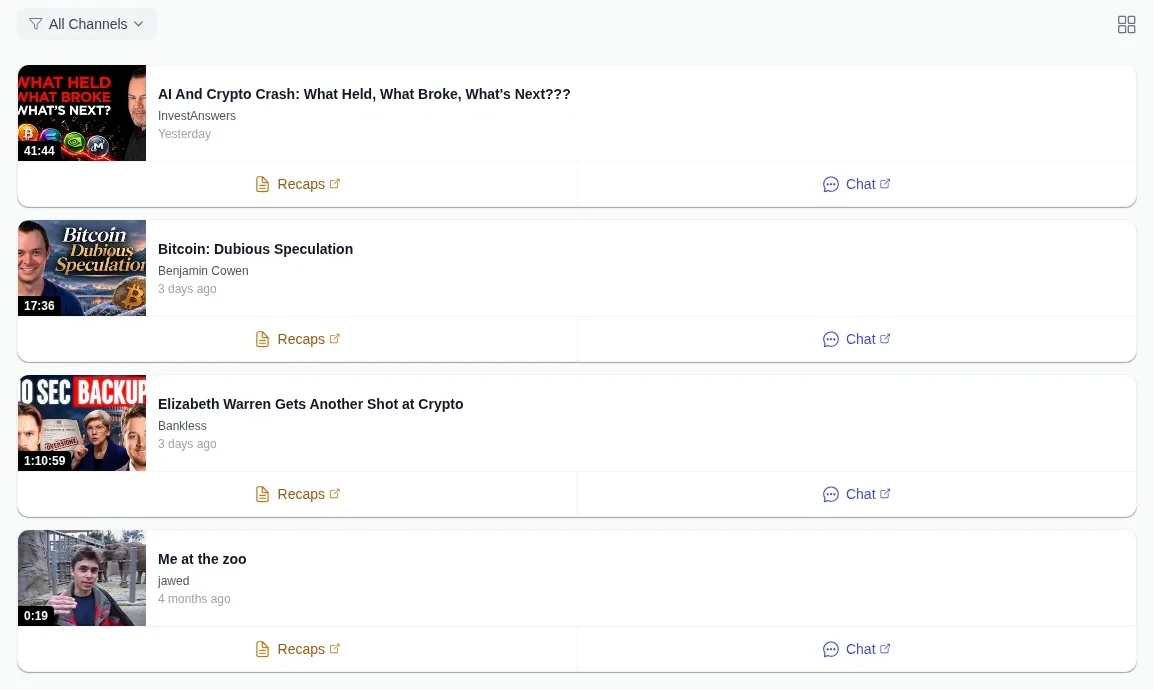
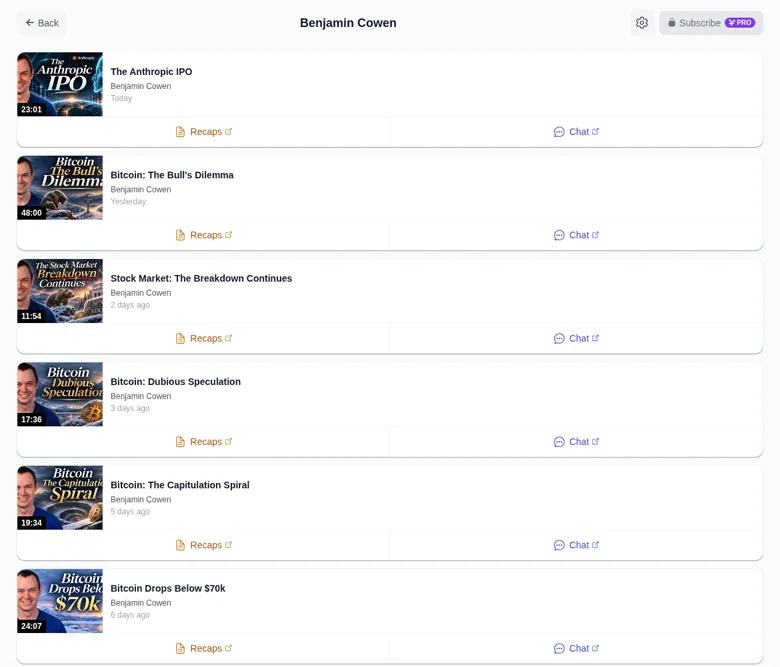
You can also open a channel from the Channels tab and click Chat on one of its videos. To connect YouTube, see How to Connect YouTube to Recapfy and Recap Videos From Your Subscriptions.
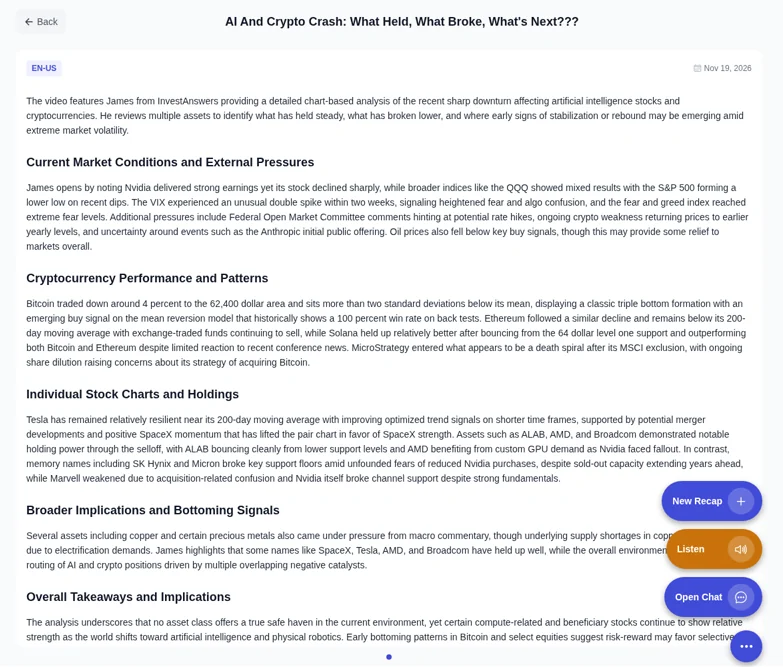
You can also open a recap, click the blue ⋯ button in the bottom right, and choose Open Chat.
Step 2: Ask a question and follow up
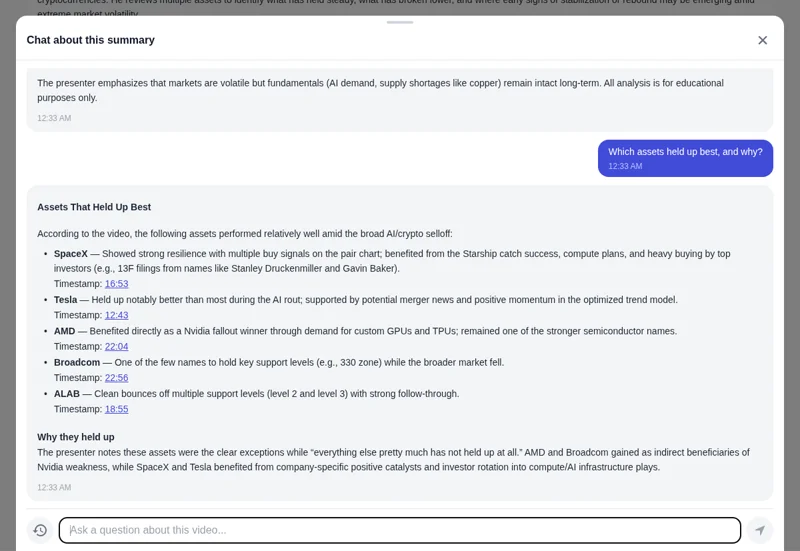
Type a question in the field at the bottom — Ask a question about this video… — and press Enter, or click the send arrow.
For example, you might ask What are the main points? Recapfy answers from that video.
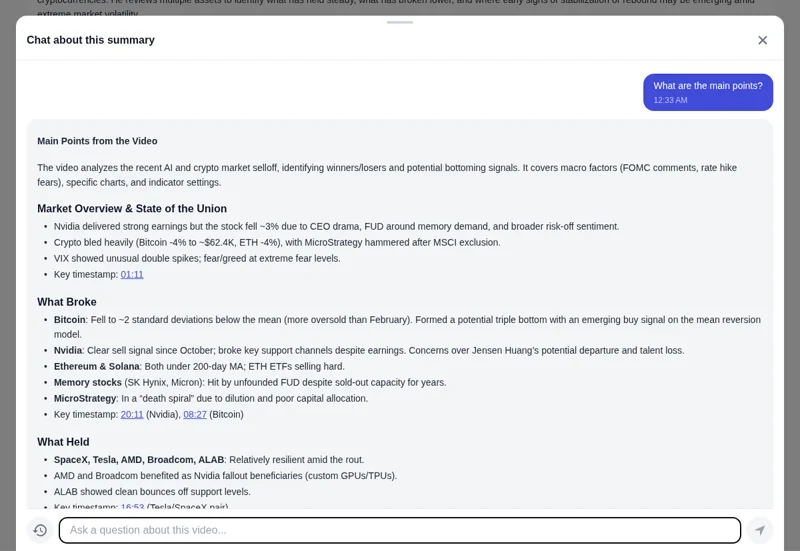
Stay in the same conversation to ask a follow-up, such as Which assets held up best, and why?
Step 3: See past chats or start a new one
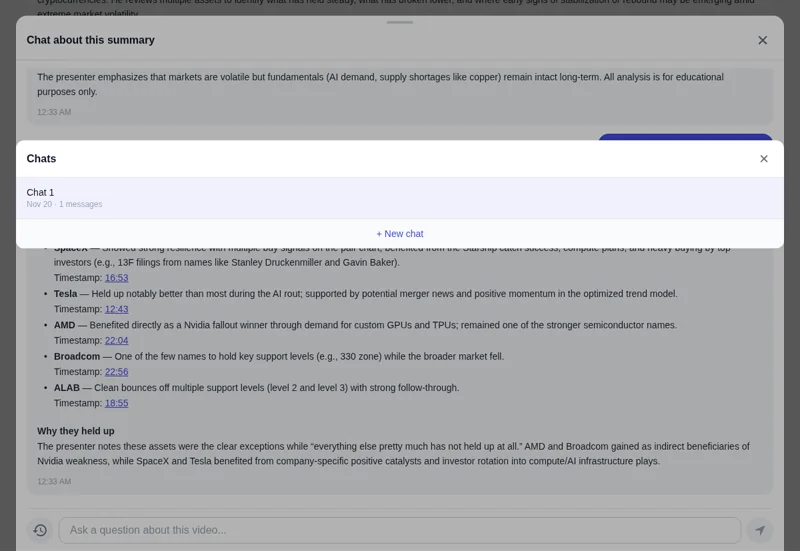
To go back to an earlier chat on this video, click the history icon to the left of the question field. The Chats dialog lists your conversations.
To start a fresh conversation, click + New chat.
Recapfy
AI-powered YouTube video summaries that save you hours of watching time.
© 2026 Recapfy. All rights reserved.