← Back to blog
How to Add Custom Instructions for a YouTube Channel in Recapfy
November 27, 2026 · 2 min read
Every YouTube channel is a bit different. Channel Instructions let you tell Recapfy how to write recaps for a specific channel — for example, to focus on technical details or skip sponsor sections.
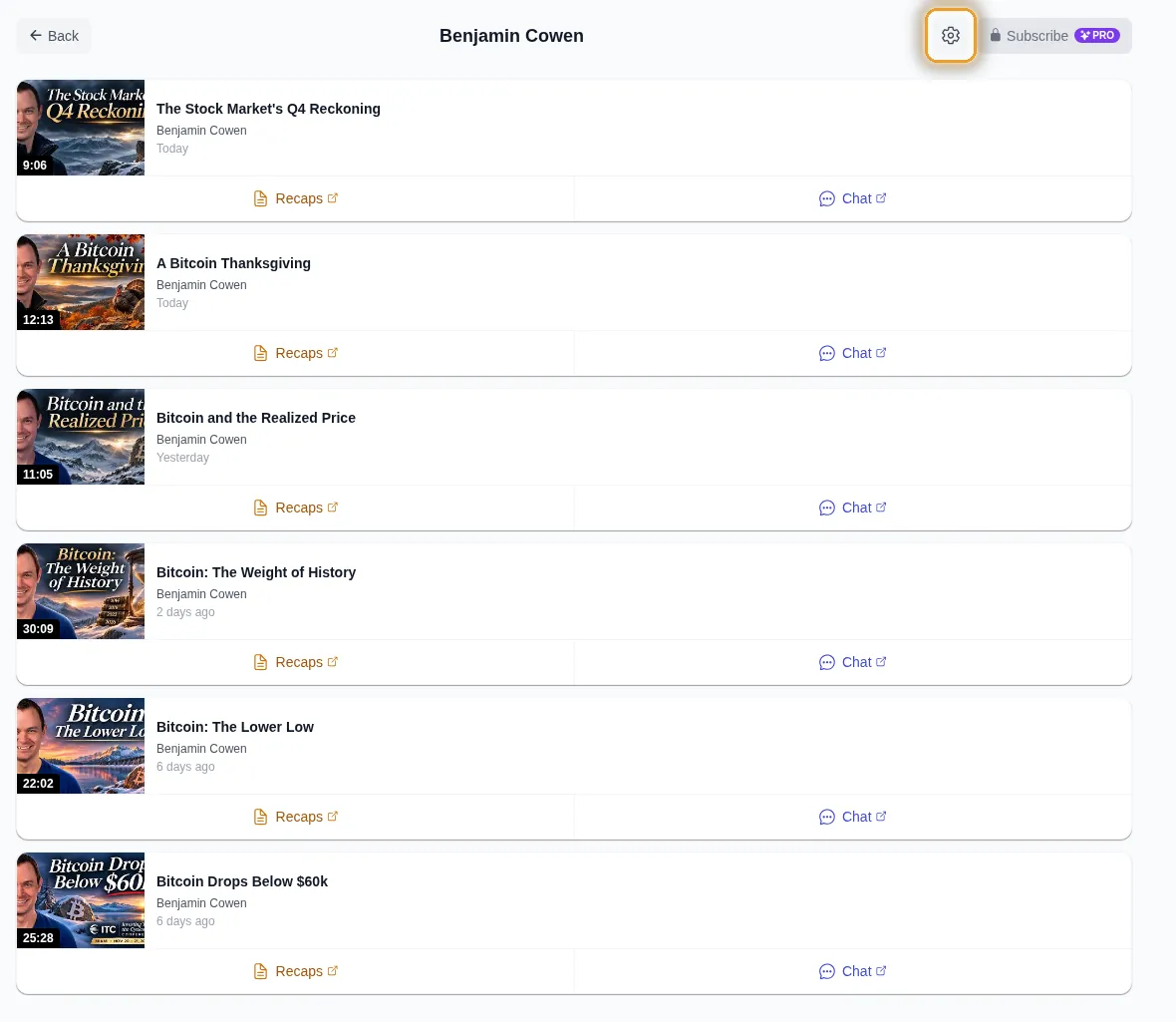
Step 1: Open a channel and click the gear
On the Channels tab, open the YouTube channel you want to customize. If your channels aren’t listed yet, connect YouTube first; see How to Connect YouTube to Recapfy and Recap Videos From Your Subscriptions.
In the top right, next to Subscribe, click the gear icon.
Step 2: Write and save your instructions
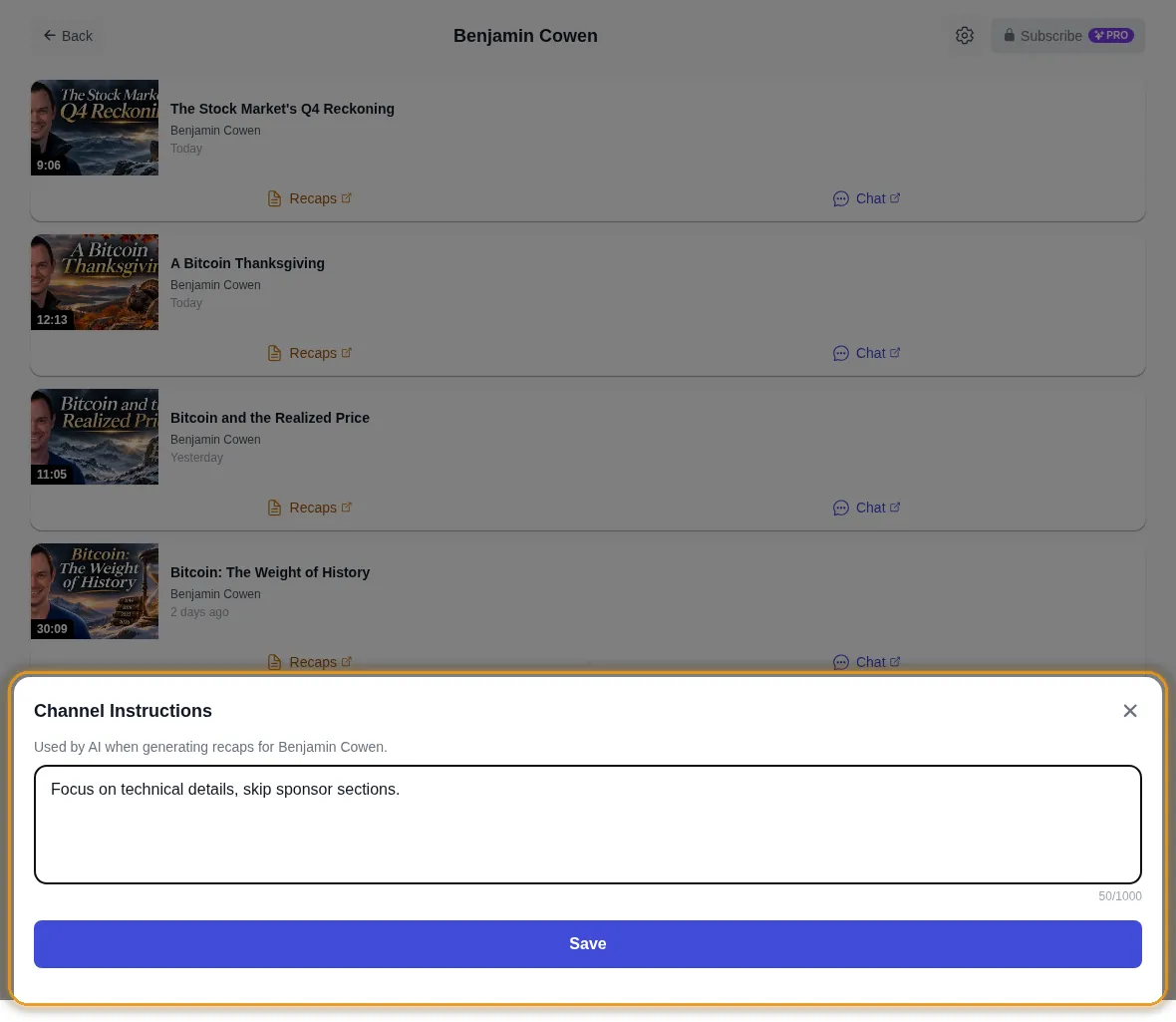
The Channel Instructions sheet says they are used by AI when generating recaps for that channel. Type your instructions in the box. The placeholder suggests an example: e.g. Focus on technical details, skip sponsor sections…
You can use up to 1,000 characters. The counter under the box shows how many you’ve used. Click Save.
New recaps for that channel use your instructions, including a New Recap of a video you already recapped, an automatic recap if you’ve subscribed to the channel, and a recap you start by pasting a YouTube link. Recaps generated before you saved the instructions stay as they are.
Channel Instructions work on every plan, including Free.
Step 3: Edit them later
To change the instructions, open the same gear on the channel page, edit the text, and click Save. To remove them, clear the box and click Save.
If you subscribe to the channel on Recapfy so new videos are recapped automatically (Starter and Expert; email recaps are paid-only), you can also edit instructions from the Profile tab. Scroll to Subscribed Channels and click the pencil icon on that channel. Automatic recaps for a subscribed channel use the same Channel Instructions. To follow new videos by email, see How to Get YouTube Video Summaries in Your Inbox.
Recapfy
AI-powered YouTube video summaries that save you hours of watching time.
© 2026 Recapfy. All rights reserved.