← Back to blog
How to Listen to a Recap in Recapfy
November 27, 2026 · 2 min read
Once you have a written recap, you can listen to it instead of reading. Recapfy uses your device’s text-to-speech to read the recap aloud. It works on every plan, including Free.
If you don’t have a Recapfy account yet, create one and get a recap first. See How to Get Your First YouTube Recap.
Step 1: Open a recap
On the Recaps tab, find the video and click Recaps. You can also open a recap from a channel on the Channels tab.
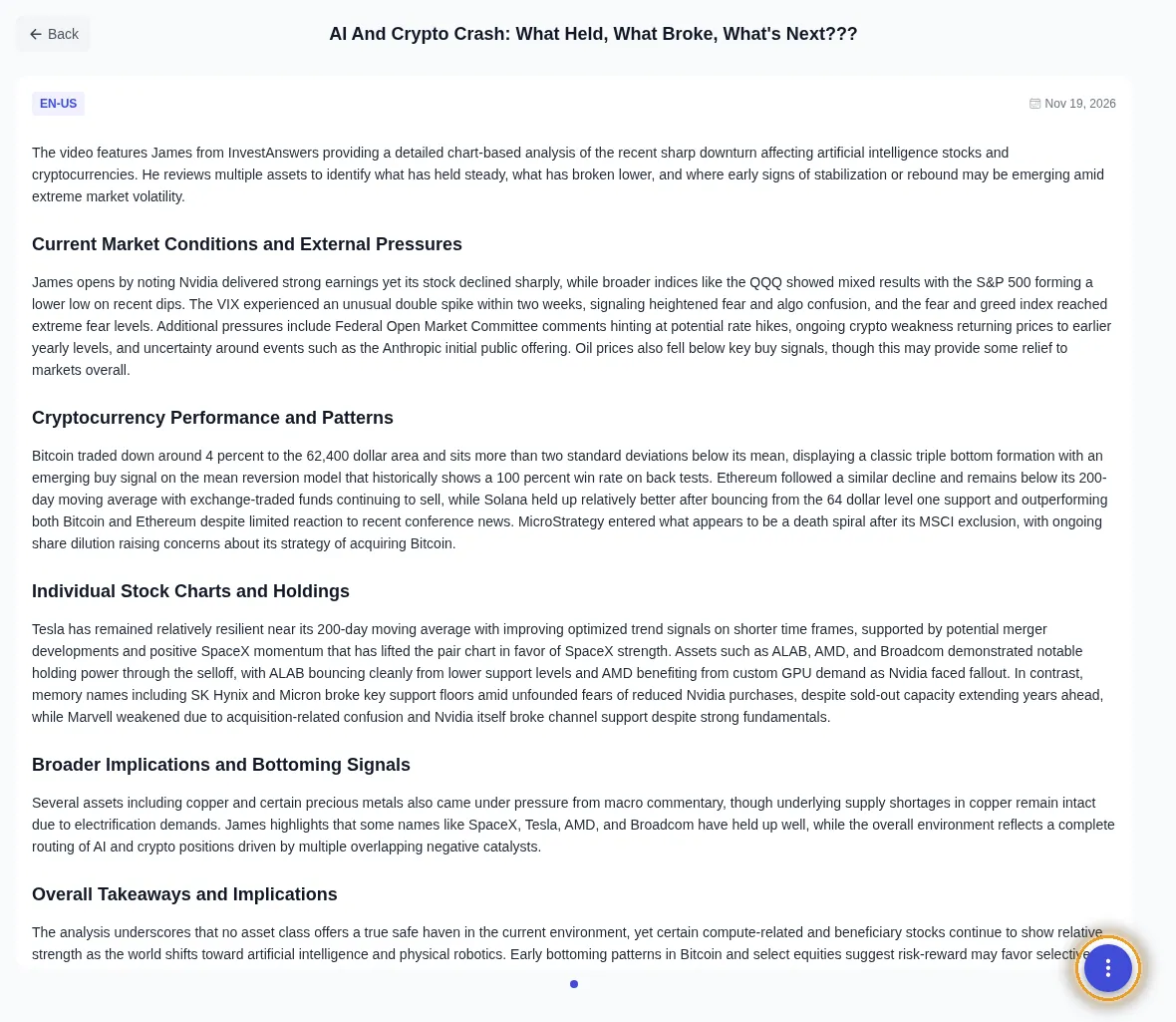
Step 2: Click Listen
Click the blue ⋯ button in the bottom right, then click Listen. Recapfy starts reading the recap aloud, using a voice that matches the recap’s language. Timestamps and formatting are skipped so it reads more naturally.
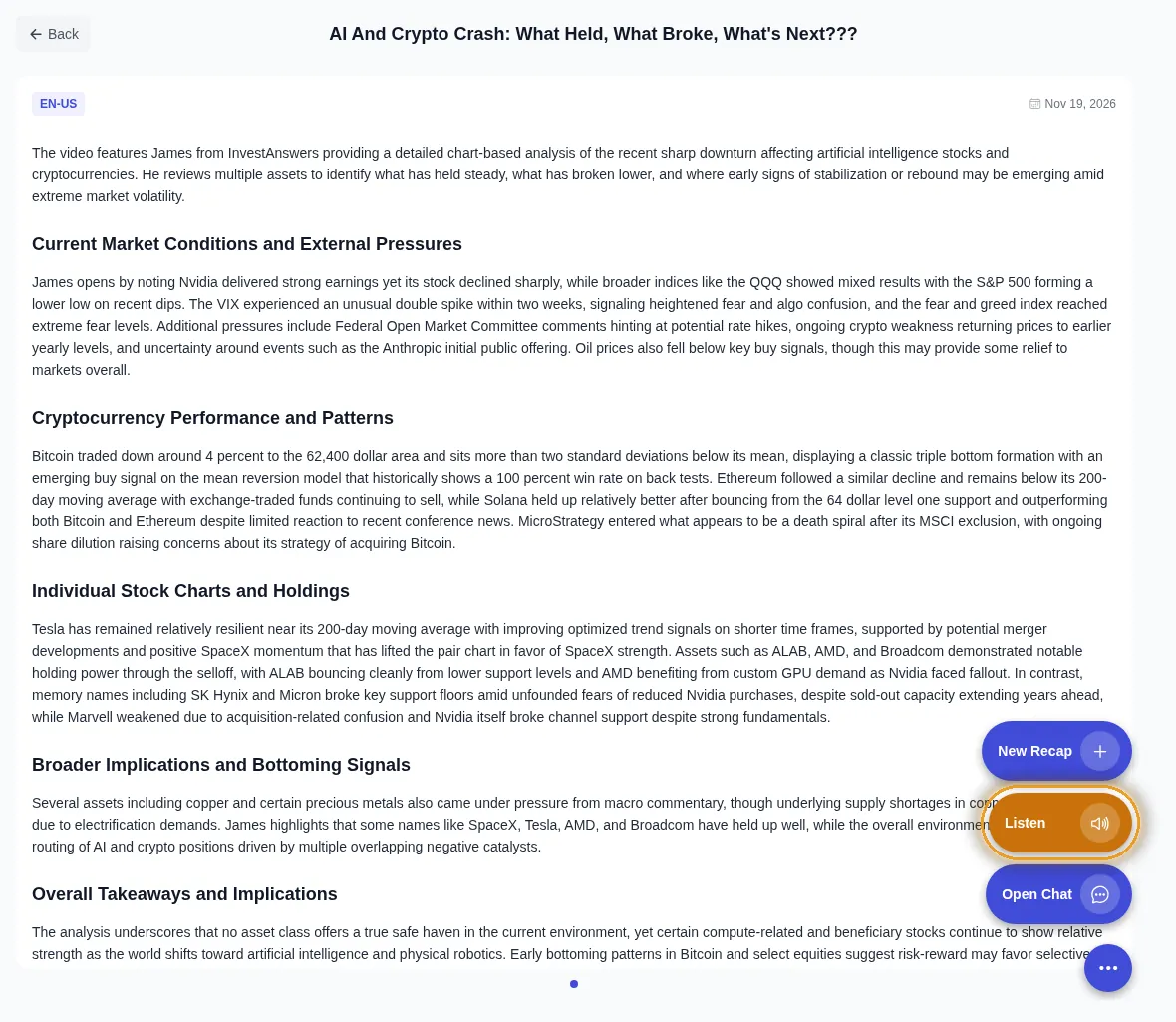
If the recap is still being generated, Listen is dimmed until the text is ready.
If no voice for that language is installed on your device, Recapfy shows a Voice Not Installed message with instructions for Windows or Mac.
Step 3: Stop, or pick a voice
To stop, click the blue ⋯ button again. The button now says Stop. Click it.
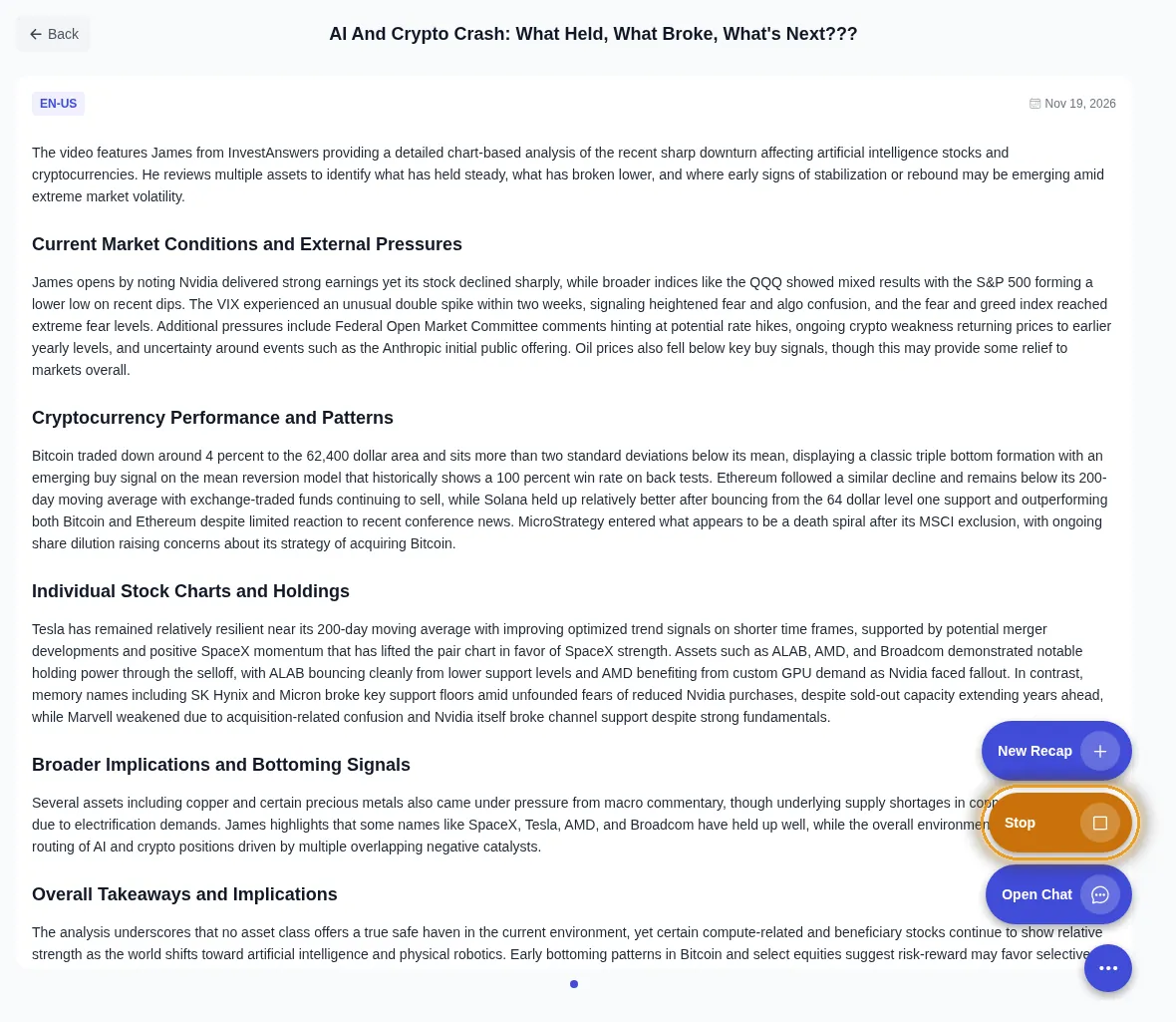
On a phone or other touch screen, long-press Listen to open the Select Voice sheet, where you can preview voices and pick one. Recapfy remembers your choice for that language. On a computer, that sheet can appear the first time you click Listen, if several voices are available and you haven’t picked one yet.
If you get the same video in another language, Listen looks for a voice in that language. Recapfy can write recaps in 80+ languages; see How to Choose Your Recap Language.
Recapfy
AI-powered YouTube video summaries that save you hours of watching time.
© 2026 Recapfy. All rights reserved.