← Back to blog
How to Choose Your Recap Language
November 20, 2026 · 2 min read
Recapfy can write a recap in 80+ languages, and it works on every plan, including Free. You can pick a language when you request a recap, get the same video in more than one language, and set a default so you don’t have to choose every time.
Step 1: Pick a language when you request a recap
On the Channels tab, paste a YouTube link and click Get Recap. If you don’t have an account yet, see How to Get Your First YouTube Recap.
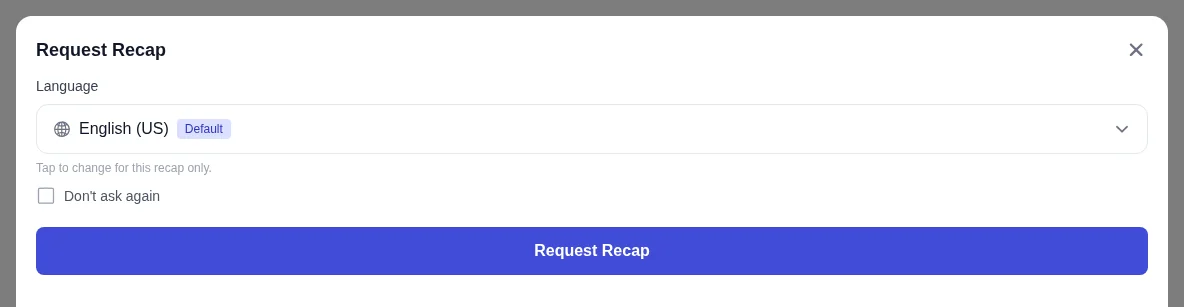
The Request Recap dialog opens with your default language, for example English (US) with a Default badge. Click the Language field to change it for this recap only.
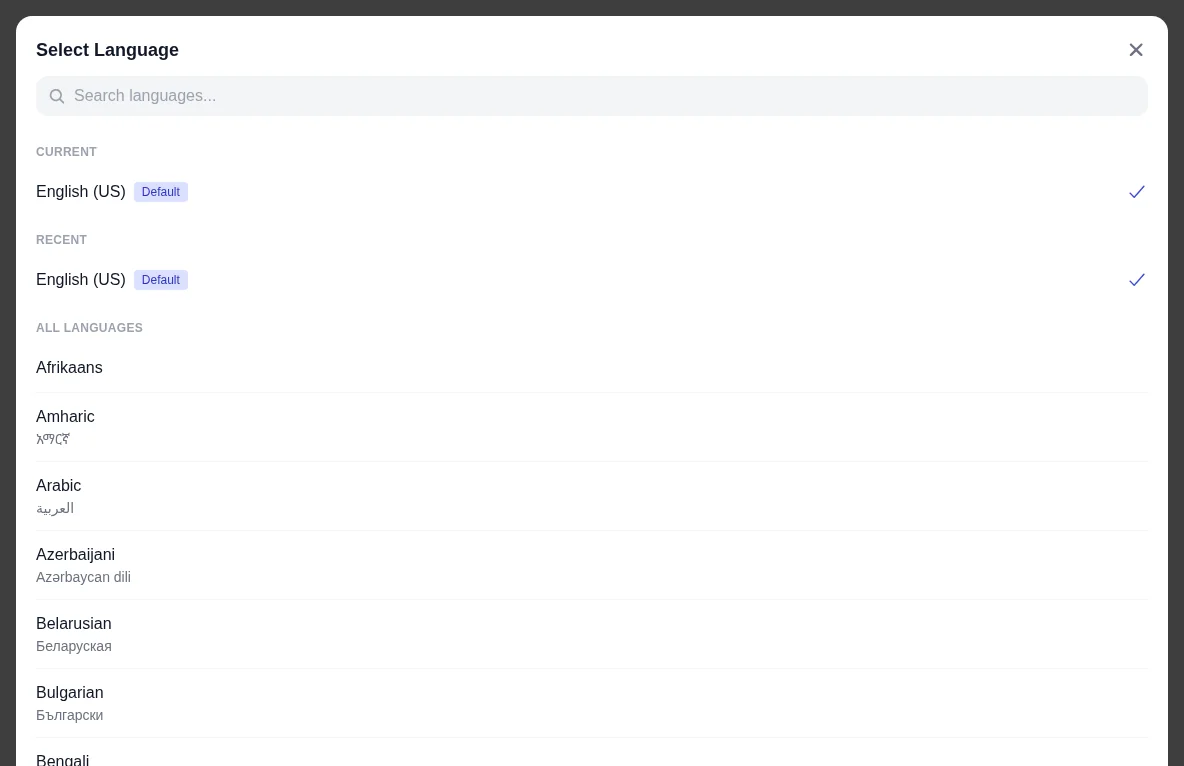
Select Language is grouped into CURRENT, RECENT and ALL LANGUAGES. Type in Search languages… or scroll, then pick one.
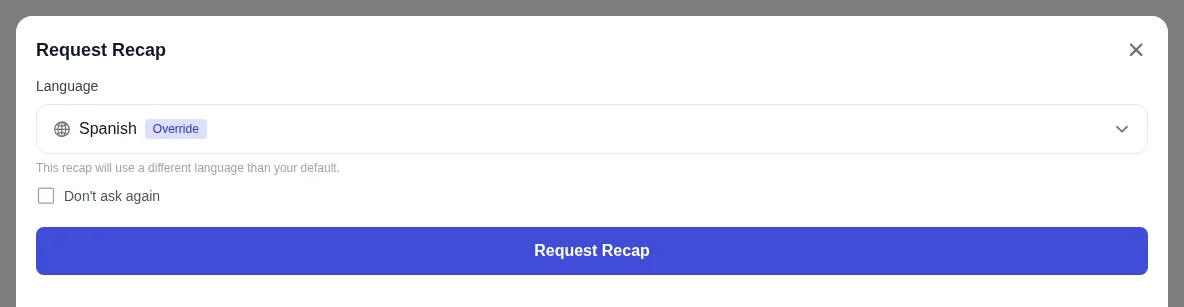
The dialog comes back with that language and an Override badge, and a note that this recap will use a different language than your default. Click Request Recap. The recap is usually ready in about 20 to 30 seconds.
If you don’t want to be asked each time, tick Don’t ask again before you request. Recapfy then uses your default language until you turn Ask for Language back on in Profile (step 3).
Step 2: Get the same video in another language
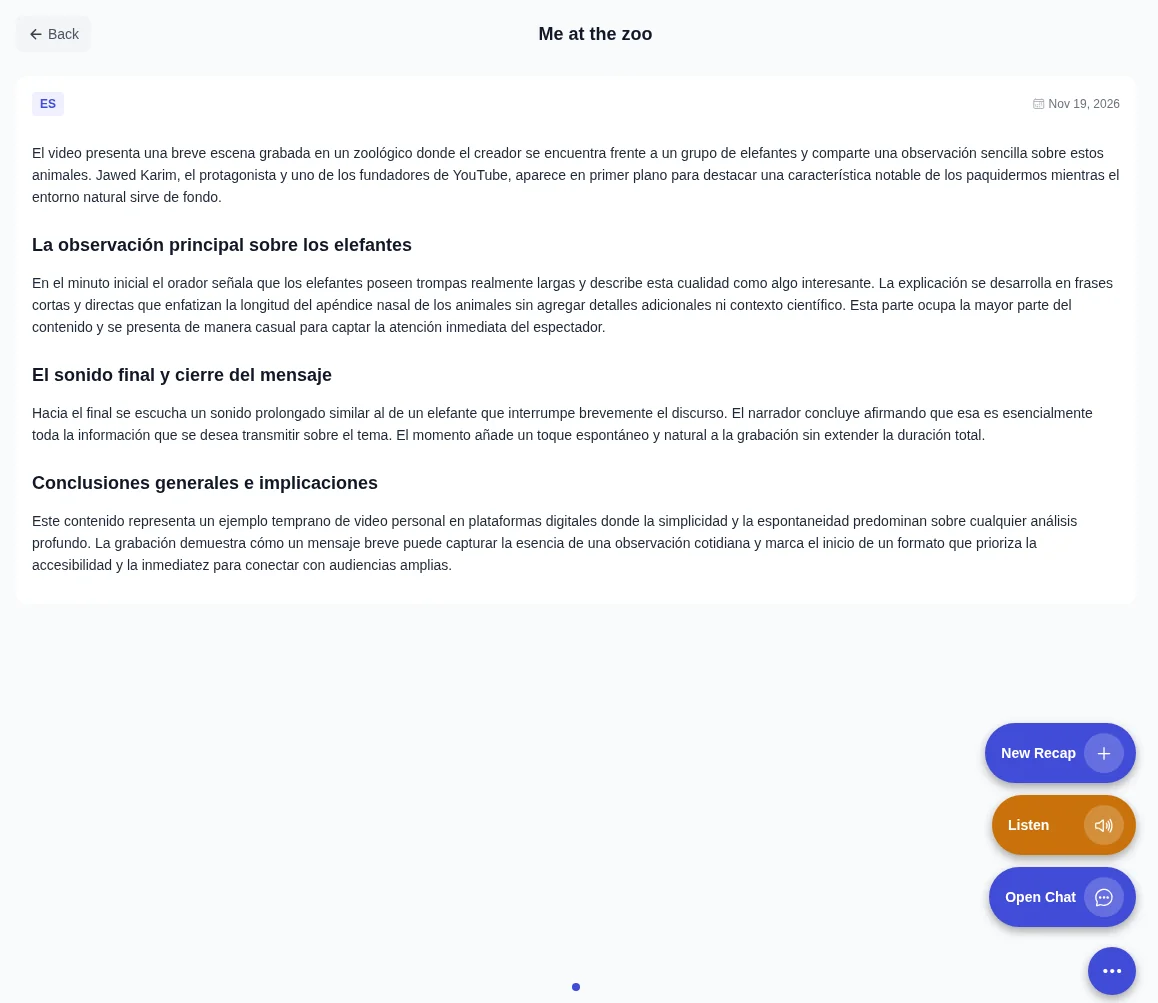
On the recap, click the blue ⋯ button in the bottom right and choose New Recap.
The same Request Recap dialog opens over the recap you already have. Pick another language and click Request Recap.
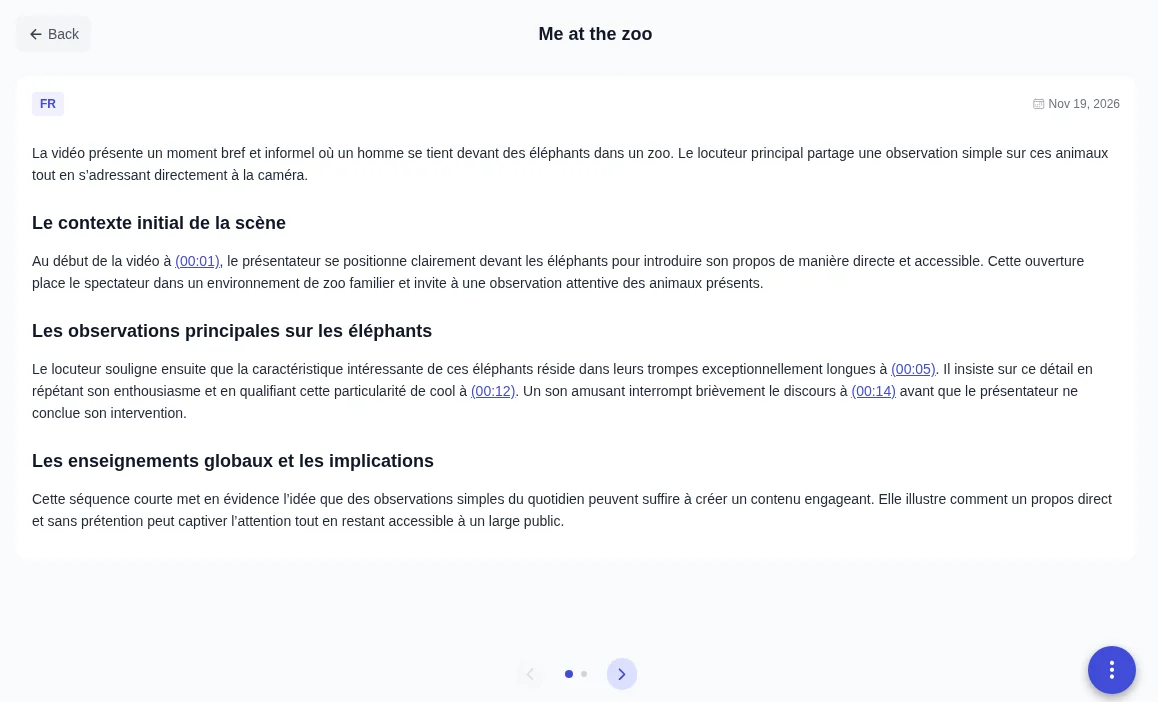
Each language gets its own recap, and you switch between them with the dots and arrows at the bottom. A badge such as ES or FR shows which language you’re viewing.
Step 3: Set your default language
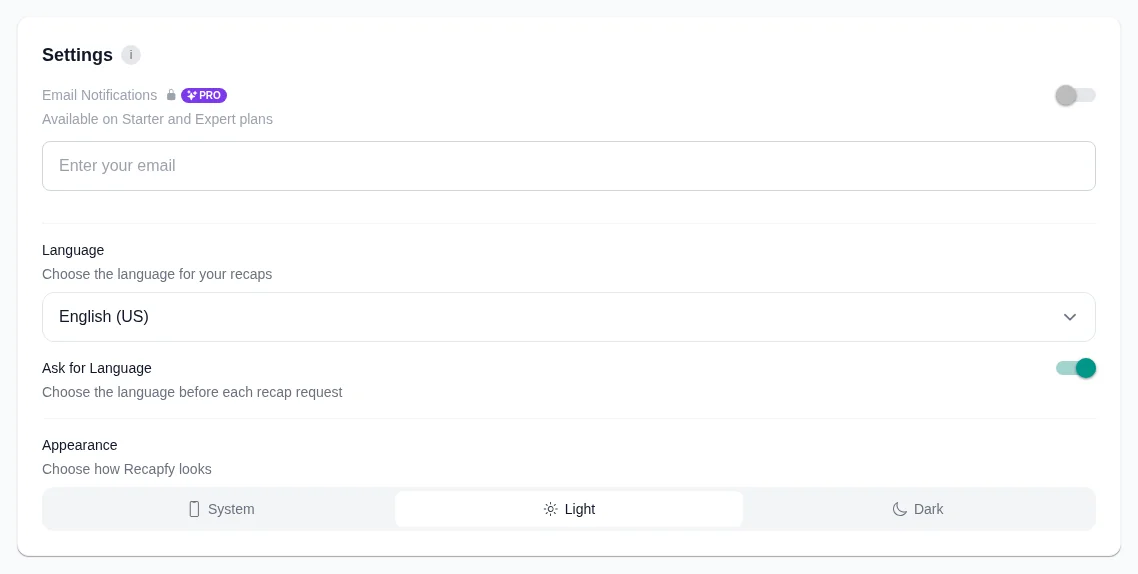
To change the default for future recaps, open the Profile tab and, under Settings, click Language (“Choose the language for your recaps”). Pick a language the same way as in step 1.
Ask for Language (“Choose the language before each recap request”) controls whether the picker appears when you request a recap. Turn it off if you always want your default, or on if you want to choose each time.
You can also recap videos from the channels you subscribe to on YouTube. See How to Connect YouTube to Recapfy and Recap Videos From Your Subscriptions.
Recapfy
AI-powered YouTube video summaries that save you hours of watching time.
© 2026 Recapfy. All rights reserved.